User Interface
This shader provides various quality of life features within the UI and tooling.
Material Editor Right-Click
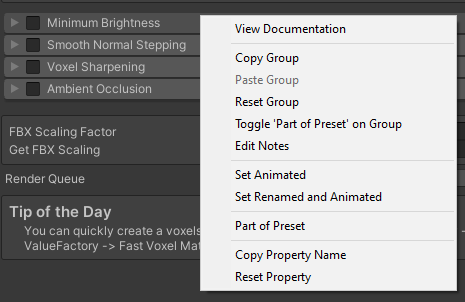
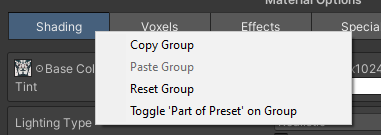
Various options are hidden away in the right-click context menus. Foldouts, groups and properties each have their own context menu that you can access by right-clicking on them.
Property right click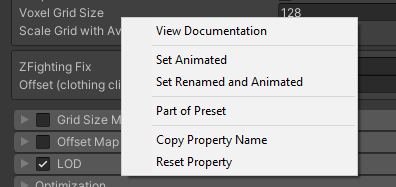
View Documentation
Documentation of most tabs and properties can be accessed by clicking the 'View Documentation' option.
Copy & Paste
You can copy and paste every property contained in a foldout/tab.
Reset
You can reset to default every property contained in a foldout/tab or an individual property.
Copy Property Name
Each property allows you to copy the backend name. Meant for animations or custom backend work.
Texture Options
Texture properties have special context menu shortcuts allowing you to quickly change the compression and resolution of textures.
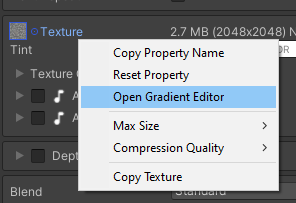
All texture slots can also open a gradient editor, if you want to use a gradient for that texture slot.
Presets
You can mark a single property as being part of a preset or entire foldouts and tabs as being part of a preset.
More information about the preset system can be found here
Animated & Renamed
Invidual properties can be marked as animated and renamed.
More information about the animated system can be found here
Notes
Foldouts have the option to add custom notes to them via the Edit Note option.
These notes support rich text! For example <color=green>Green text</color> will create a green note!
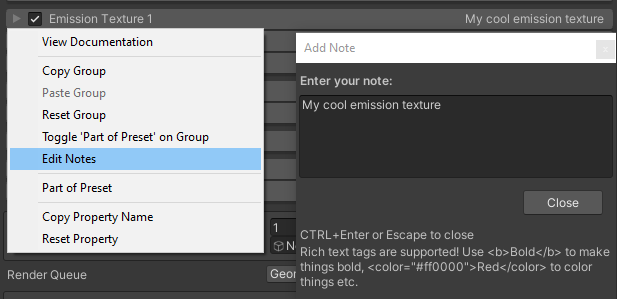
More information about rich text can be found here
Material Editor Features
Multi Editing
The material editor allows you to select multiple materials at a time and edit them all at once.
This also includes selecting locked materials, though you will be asked to unlock them first.
Presets
You can lock & unlock one or more selected materials.
More information about the preset system can be found here
Locking & Unlocking
You can lock & unlock one or more selected materials.
More information about locking can be found here
Project Window Right-Click
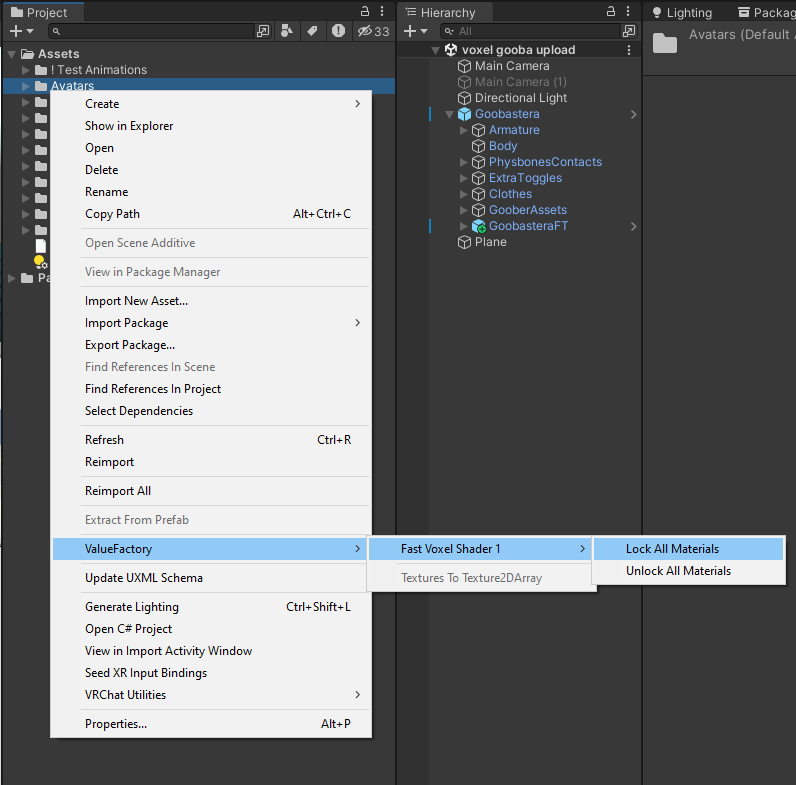
You can unlock/lock folders full of materials by right-clicking on a folder or a material in the Project view, going to ValueFactory/Ground Shadow Shader 1/ and selecting Lock or Unlock all materials.
Hierarchy Window Right-Click
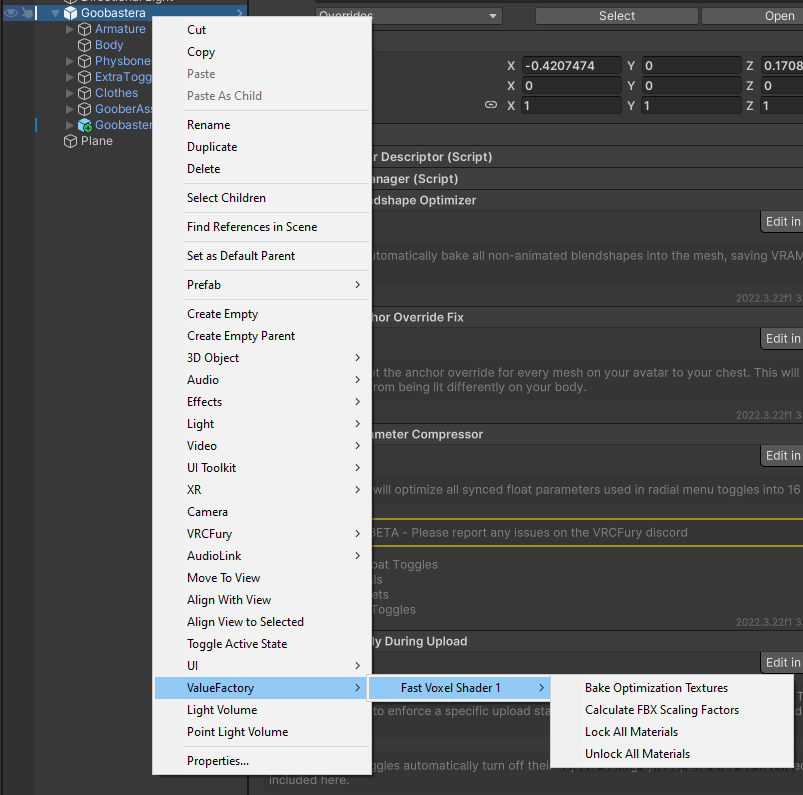
You can right-click on an object in the hierarchy view and act on all materials found as the children of that object.
These are only available in Unity 2022 and up!
Locking & Unlocking
You can lock or unlock all materials on a avatar (not including any material swap animation materials).