Presets
Presets are a way of capturing material configurations and reusing them in other materials.
Everyone is able to create and share presets.
Creating Presets
You can create your own presets by going into Advanced and setting the preset type to Partial or Full. This will turn the material into a preset.
The material is the preset, so any changes made to the material will reflect on the preset.
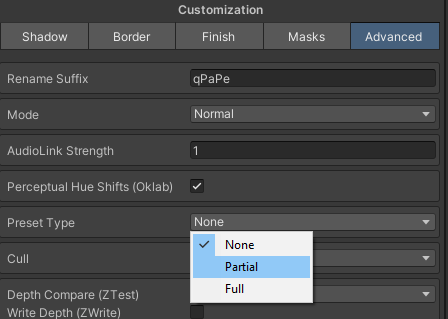
The name of the preset will be taken from the name of the material. You can also set the description of the preset in the Advanced tab.
The "directory" of the preset can be used to organize the preset in the preset browser. Use / as a seperator to place the preset at a dropdown. For example a directory of ValueFactory/Misc will place the preset under the "ValueFactory" tab and in that tab, under the "Misc" tab.
Full Presets
When a full preset is applied to a material, every property that can be part of a preset will be copied over from the preset onto the material that you're applying the preset into.
So, it's a full preset, because everything on that preset will be copied over.
Partial Presets
When a partial preset is applied to a material, only properties that are marked as being "part of the preset" will be copied over from the preset to the material you're applying it to.
So they're partial because not everything will be copied over. We can choose what will be copied over.
You'll be able to mark properties as being "part of a preset". These marked properties are the ones that will be applied to a material when this preset is used.
Properties that are part of a preset will have a cyan name.
You can right-click properties, foldouts etc and click on Part of Preset to make them part of the preset.
Foldouts have the Toggle 'Part of Preset' on Group right-click option to toggle all of their properties to be part or not be part of the preset.
Using Presets
You can browse and apply presets to your materials by clicking the Browse Presets button in the material editor.
You can click on a preset to preview it on your material without applying it.
Select a preset and click apply to apply it to your material.
You can also search for and filter presets by type and name.
Preset Storage
You can store presets materials in the Assets and Packages folder. You can also export and share material presets.