AudioLink
AudioLink enables audio reactive elements on materials. It is a world feature and not all worlds support it.
To use it, simply mess around with the various AudioLink options throughout the features of this shader.
You can learn more about AudioLink here
You do not need to install AudioLink in your project to upload materials that use AudioLink. However, you do need AudioLink to test it in-editor!
Testing AudioLink
- Make sure AudioLink is installed in your project. To install it, follow instructions here.
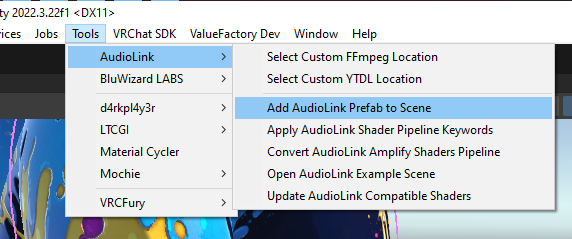
- Add the AudioLinkAvatar prefab to your scene by navigating to
Tools/AudioLink/Add AudioLink Prefab to Scene - Enter into play mode.
VRCFury: be aware that VRCFury will create a copy of your avatar when you enter into play mode. Changes made to your material might not be saved in play mode. To work around this, consult this guide here.
AudioLink should be working in play mode now!
You can change out the audio that's used to generate the AudioLink by changing the youtube link on the AudioLinkAvatar/AudioLinkYtdlpPlayer object in your Hierarchy view. Or drag in a mp3 and drag it onto the AudioClip property on AudioLinkAvatar/AudioLinkInput
AudioLink Strength
You can change the global strength of AudioLink effects by changing the AudioLink Strength property in the Advanced tab.
- A value of 0 will disable AudioLink on the whole material.
- A value of 1 will maintain normal AudioLink operation.
- Values above 1 will increase the strength of AudioLink on the whole material.